

Drone mapping data can become part of a Procore project record through a platform connection or file export. A Procore integration with third-party drone mapping services gives teams a way to bring aerial deliverables into project workflows, but the exact process depends on the mapping tool and connection setup.
Useful project documentation takes more than capturing imagery. Teams need a clear way to link each deliverable to its project, make it accessible to collaborators, and know when updated information is ready. Without that structure, aerial data can remain separate from the decisions it should inform.
This guide explains how integration approaches differ, what to consider when choosing a mapping service, and how to plan data transfers around project needs. You’ll learn how drone outputs can support collaboration and documentation, and what to assess before adopting a workflow. Use these points to determine whether your process connects aerial information with the records and people who need it.
Key Takeaways
- Match each drone deliverable to the Procore record or workflow where your team needs to find it.
- Compare native connections with third-party workflows by how they handle file exports, project context, and collaboration.
- Set sync expectations around the mapping platform’s transfer process and your team’s review steps.
- Assess services by the data they produce and how that information supports planning, progress tracking, and site decisions.
- Use a clear handoff process so project teams can access current aerial documentation and act on it.
Connecting visual site data with Procore project records and workflows
A Procore integration with third-party drone mapping services can connect aerial deliverables to project records through a supported connection or file export. A useful workflow starts before a file reaches Procore: identify the project, define the record’s purpose, and choose a destination your team can find. For example, an orthomosaic showing preconstruction conditions should be clearly linked to the relevant project and site area.
Drone data supports construction project management when teams can connect it to a decision. Imagery and video can document site conditions at different stages, including before construction begins. Teams can also use aerial data to identify potential issues earlier in planning. The Procore record gives participants a place to find the deliverable and understand which job or phase it describes.
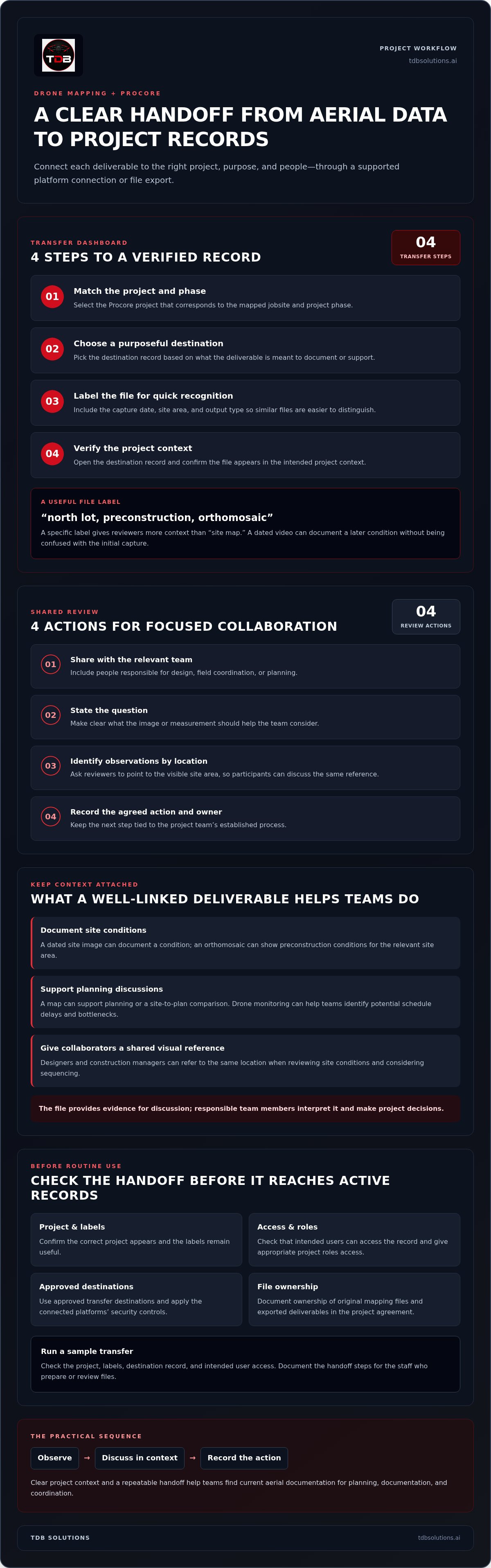
Use this sequence for each transfer:
- Select the Procore project that matches the mapped jobsite and phase.
- Choose the destination record based on the deliverable’s purpose.
- Label the file with its capture date, site area, and output type.
- Open the destination record and confirm the file appears in the intended project context.
Specific labels help distinguish similar records. For example, “north lot, preconstruction, orthomosaic” tells a reviewer more than “site map.” A dated video can document a later condition without being confused with the initial capture. That distinction matters when teams compare site conditions across project stages or discuss a visible change.
Permissions, data security, and ownership depend on the connected platforms, account settings, and project configuration. Give appropriate project roles access, and use approved destinations for transfers. Document ownership of original mapping files and exported deliverables in the project agreement, then apply the platforms’ security controls when sharing them.
Choose a destination based on what the record needs to help someone do. A dated site image can document a condition; a map can support planning or a site-to-plan comparison. Drone monitoring can also help construction managers identify schedule delays and bottlenecks, providing information to consider when adjusting schedules and resources. The file itself does not make that decision. Clear project context helps the team locate the evidence and discuss next steps.
Before adding the workflow to active project records, run a sample transfer from the mapping platform to its Procore destination. Check that the correct project appears, labels remain useful, and intended users can access the record. Document the steps for staff who prepare or review files. A repeatable handoff makes visual site data easier to retrieve for planning, documentation, or project coordination.
Drone-enabled collaboration
Aerial imagery gives project participants a shared visual reference for planning. A designer can review mapped site conditions while a construction manager considers how they affect sequencing. For example, when reviewing an access route, the team can point to the same location on an aerial image instead of relying on separate verbal descriptions. Drone imagery and measurements can support more informed planning and design.
Make collaboration specific. Before a review, identify the site area, the question the team needs to resolve, and the relevant capture. During the discussion, ask participants to describe observations by location. Afterward, record the decision and assign follow-up through the project team’s established process. This keeps the aerial deliverable tied to a practical planning task.
A focused review can follow these steps:
- Share the aerial view with the people responsible for design, field coordination, or planning.
- State the question the image or measurement should help address.
- Ask reviewers to identify observations by visible site location.
- Record the agreed action and who will handle it.
This approach separates observation from interpretation. One reviewer may spot a visible site constraint; another may explain its design implications. The team can compare those views before choosing a response. For a grading discussion, participants might examine the mapped area, identify the point needing review, and direct the next design or field discussion to that location.
Drone capture can also support collaboration when ground access is difficult or an area presents hazards. Aerial data can gather information from hard-to-reach areas without exposing workers to them. Project participants can review the available visual information remotely and decide what follow-up the work requires. The imagery informs the discussion, while responsible team members make project decisions.
Keep shared files understandable to people who didn’t attend the flight or initial review. Clearly describe the site area and capture purpose, and distinguish a visual record from a measurement or design reference. If a participant raises a question, connect it to the relevant location and deliverable. This makes asynchronous review more useful for field and office teams working on different schedules.
For recurring coordination, set a review rhythm that matches the project’s planning needs. Share the relevant capture before a design or field meeting, then note which observations require follow-up. Avoid sending files without context. A targeted aerial view, a defined question, and an assigned next action help teams turn shared site information into clearer collaboration.
Share information with the team members who need it, along with the question under review. Construction teams can use regular drone captures to keep stockpile information current. For a stockpile discussion, participants can refer to the shared capture, describe the relevant area, and note what needs attention. This keeps the review focused on the stockpile rather than differing descriptions of the site. The team can then carry the question into its established planning process.
Native integrations versus third-party integrations
A native integration connects two platforms through a built-in connection. A third-party integration relies on another service, an automation layer, or a manual export between the mapping platform and Procore. The practical difference is the handoff: a direct connection may reduce repeated steps, while an external workflow can add flexibility but requires clear ownership.
For example, your mapping platform produces an orthomosaic and progress photos after a site flight. A native connection may let your team send supported outputs to a Procore project through its available workflow. A third-party route may require exporting files and uploading them to the selected project record. The exact steps depend on the tools and connection available to your team.
What are the limitations and compatibility requirements for Procore drone mapping integrations? The mapping platform and connection must support the data formats, transfer method, and Procore destination your team needs. File size, metadata, permissions, and available automation can also shape the workflow, so test a representative deliverable before standardizing the process.
Compare the options against the work your team performs, not just the word “integration.” A connection that transfers photos may not handle a 3D model or measurement report in the same way. Likewise, an exported map may reach a project record without carrying the labels or context your reviewers expect. Confirm the complete handoff with a sample file and inspect the resulting record.
- Transfer: Does the route send files automatically, or does a person export and upload them?
- Data: Which outputs can it handle, such as imagery, an orthomosaic, or a volume report?
- Context: Does the transfer retain useful filenames and capture details?
- Control: Who manages access, connection settings, and failed transfers?
Native connections can simplify a repeatable workflow when they support the required deliverables and destination. Third-party connections can bridge separate platforms, but each additional handoff creates another place to manage settings and review results. Neither approach automatically guarantees a complete project record. Your team still needs a defined process for naming, checking, and sharing each transfer.
For a practical comparison, trace one deliverable from capture to review. Choose a current site image, identify its source platform, transfer it through the available route, and inspect its final Procore location. Repeat with another output, such as a measurement report. Record which steps happened automatically and which required staff action. This side-by-side test shows whether the connection fits the actual project workflow.
Sync timing
“Sync” can describe several separate steps, not one instant event. A drone capture must first become a usable deliverable, such as an orthomosaic or progress image. The mapping platform then transfers or exports the file, and the project team reviews it in Procore. Track each stage separately so a recent flight isn’t presented as current before its processed map reaches the project record.
For example, a crew captures a site after a grading change. The imagery may be available before the mapped output finishes processing. If the team posts the first files immediately, label them as preliminary documentation. Add the finished map after processing, then update the record so reviewers can distinguish the two deliverables.
Set timing expectations around the project decision, not just the flight. If a superintendent needs imagery for a coordination discussion, the team should know which output must be ready beforehand. A stockpile volume report may need processing before material planning. A site photo for general progress documentation may follow a different review path.
Build a simple status sequence for each capture:
- Captured: The drone flight has collected site information.
- Processing: The mapping platform is preparing imagery, maps, or measurements.
- Transferred: The file has moved through the selected connection or export workflow.
- Reviewed: A project team member has checked the destination and file context.
This sequence helps locate delays without assuming Procore or the mapping service failed. If a map is still processing, the transfer cannot include the finished output yet. If processing is complete but the Procore record lacks the file, inspect the handoff step, destination, and access settings. Keep the capture date visible so an older map isn’t mistaken for the latest site condition.
For recurring captures, use a consistent naming pattern that includes the project, site area, capture date, and deliverable type. For example, “North lot, grading, capture date, orthomosaic” gives reviewers more context than “Map final.” Apply the same pattern to each delivery. Consistent labels make it easier to compare records and identify which capture belongs in a project discussion.
Decide how the team will handle a missed or incomplete transfer. The process might assign someone to confirm the Procore destination after export and record the status in the team’s existing workflow. For an automated route, define who reviews failed or partial transfers. A clearly assigned owner prevents a file from sitting unnoticed between the mapping platform and project record.
Finally, align sync frequency with how often the information changes and how teams use it. Regular drone monitoring can help construction managers spot schedule delays and bottlenecks. Link each capture to a review point, such as a planning meeting or progress check, rather than treating every uploaded file as immediately actionable.
Which third-party drone mapping services integrate with Procore?
There isn’t one universal service list that fits every Procore project. Compatibility depends on the mapping platform’s connection method and the outputs it can transfer. A service may connect through a direct integration, an API-based workflow, or file export and upload. These methods don’t provide identical features, so identify the exact mapping platform and deliverable before planning your workflow.
Start with the output your team needs. For example, a construction group might need an orthomosaic for site review, photos for progress documentation, or a stockpile volume report. Then determine whether the mapping service can send that output to the intended Procore project destination. A workflow that transfers images may not transfer measurements or 3D model files in the same way.
Use these steps to assess a candidate service:
- Name the platform: Record the drone mapping service and the specific project workspace your team uses.
- List the deliverables: Separate imagery, maps, models, and measurement reports.
- Identify the transfer route: Determine whether the connection uses a direct handoff, an API, or a manual export.
- Test the destination: Send a sample file to a test project record and review its labels and context.
- Assign an owner: Decide who handles access, file checks, and transfer issues.
That test distinguishes a useful connection from a simple file drop. For instance, if a dated map reaches Procore without a site-area label, reviewers may struggle to compare it with another capture. If a volume report transfers separately from its source map, preserve a clear relationship between the two records. Test each deliverable type your workflow depends on.
Compatibility also depends on the project setup. Consider user permissions, destination options, supported file types, and any metadata your team needs to retain. A mapping service may support one transfer route while your project process requires another. Document the selected route and review step so field staff and project managers follow the same handoff.
Keep the evaluation focused on function, not just a vendor name. Ask whether the connection can move the required files, place them in the intended project context, and support the team’s review routine. Then test a small workflow before adopting it across active jobs. This gives you a practical answer for each mapping platform and deliverable, without assuming every service handles Procore the same way.
Need help aligning drone deliverables with construction project records? Discuss your construction mapping workflow and identify the outputs your team needs to manage.
Drones can collect construction-site data quickly, helping teams identify potential problems earlier in planning and potentially avoid more costly fixes. Include that planning use when testing a transferred map or other site record. Consider whether the chosen deliverable helps the team review site data for potential problems while planning is still underway.
Include that purpose alongside the file and destination when evaluating the handoff. A connection is useful when it puts relevant collected data where the team can use it for earlier planning review. Confirming this during a small workflow test connects the service choice to the potential benefit: identifying issues earlier and potentially avoiding costlier fixes.
TDB Solutions: Construction Intelligence
TDB Solutions provides Construction Intelligence for teams that need aerial documentation, site progress reports, volumetric measurements, and overhead oversight. Use these deliverables to document site conditions and support project decisions. FAA Part 107 certified pilots perform every flight, and the team brings more than 10 years of survey experience to jobsite work.
Consider this service when your project needs consistent visual records or aerial measurements to inform planning and progress reviews. Your Procore workflow still depends on the mapping platform and transfer method you select, but clear, organized deliverables give your team useful project information to manage.
Contact TDB Solutions to discuss Construction Intelligence for your project.
Put Your Project Data to Work
Start by defining what your team needs aerial data to do after capture. Choose the project decisions it should support, identify the deliverables people need, and assign responsibility for keeping records clear and current. A well-planned Procore integration with third-party drone mapping services starts with that workflow, not just a software connection.
TDB Solutions supports construction teams with Construction Intelligence. Its Custom Mobile-First Websites and Marketing Media Production also help businesses communicate their work beyond project records. Keep the goals specific and make each tool serve a clear purpose.
Ready to discuss your project’s aerial data needs? Contact TDB Solutions to discuss your project. A clear plan gives your team a practical next step.


